
Passkeys
/ 11 min read
Updated:Table of Contents
The Password Dilemma
“Should I use passkeys?” my friend asked recently. Like many, they were curious about this emerging technology that promises to replace traditional passwords. “Probably,” I responded, but I realized I couldn’t articulate exactly why. While I knew passkeys leveraged public key cryptography to enhance security, the details were fuzzy. I promised to research the topic thoroughly and report back. Here’s what I learned:
What are passkeys?
Passkeys replace passwords with a secure digital ‘handshake’ between your device and a website. When you set up a passkey, two special digital keys are created: one stays safely stored on your device (like your phone or laptop), while the other lives with the website or app you’re using.
Instead of typing “monkey123” or trying to remember if you used an exclamation point or the number 1 in your password, you simply prove it’s you by using something you already do or have: your fingerprint scan, face recognition, or device PIN.
The FIDO Alliance officially defines a passkey as:
A passkey is a FIDO authentication credential based on FIDO standards, that allows a user to sign in to apps and websites with the same process that they use to unlock their device (biometrics, PIN, or pattern).
How do passkeys work?
Let’s step back in time to understand the modern math. If you prefer the “Just the facts” version, feel free to skip to the Kayak example below. Otherwise, let’s look at the legend of the royal signet.
Imagine medieval Europe’s sprawling network of castles, where a clever forgery could mean the fall of a kingdom. At the heart of royal security lay an ingenious innovation: the Private Signet Ring and its Public Seal Molds.
Every King possessed a unique ring—a masterpiece of goldsmithing kept under constant guard. But the genius wasn’t just in the ring; it was in the Public Molds distributed to every noble court. These molds were “negatives” of the King’s crest, useless for creating a seal, but perfect for verifying one.
Picture a critical moment: A messenger arrives at a fortified castle on a stormy night. The Castle Steward, wise to deception, doesn’t just look at the messenger. He retrieves his Public Mold. When the messenger presents the parchment, the Steward presses the mold against the Red Wax Seal.
The seal aligns perfectly with the mold. The brilliance is the direction: anyone can verify a seal, but only the King can create one. The system’s brilliance is its one-way nature: while any Steward can verify a seal’s authenticity, only the King—holding the Private Ring—can create the impression in the first place.
In the world of passkeys, your Phone is the King holding the private ring, and the Website is the Steward holding the public mold. When you log in, your phone “signs” a digital message, and the website simply checks if that signature fits the mold it already has on file. This ensures that even if a hacker “steals the mold” (breaches the website’s database), they can’t use it to forge your identity elsewhere.
An Example using Kayak
Creating Your Account: A Modern Take on Authentication
Let’s walk through the account creation process:
- First, provide an email address to begin establishing identity.
- Skip the password screen; the site prompts for a passkey instead.
- A password manager (in this case, 1Password) steps in to handle the technical details of generating and storing the keys.
Logging In with Your Passkey
Start with clicking “Sign In”:
- Kayak sends a unique cryptographic challenge to the browser, essentially asking “Prove you’re really you.”
- The browser recognizes this as a passkey request and seamlessly hands it off to 1Password, where its private key is securely stored.
- Before 1Password can use the private key, it needs the user’s permission - what’s known as a “gesture.” This extra security step can be completed in one of two ways:
- Biometric verification (like a face or fingerprint)
- Manual verification (a vault password or PIN)
- Once the user has verified their identity, 1Password uses the private key to sign the challenge, creating a unique response that proves the user is the rightful account owner.
Cross-Device Authentication: Using Passkeys on Public Devices
- When you attempt to log in to Kayak from a browser without 1Password installed, instead of seeing the usual “Use Passkey” dialog, you are presented with a QR code.
- Scan this code with your mobile device, which already has both 1Password and your Kayak passkey stored.
- This scan establishes a secure, local Bluetooth connection to prove your phone is physically near the computer (preventing remote hackers from tricking you).
- Your phone reads the connection data hidden in the QR code and reaches out to Kayak over the internet to initiate the authentication process.
- The phone triggers Face ID to unlock and use the passkey’s private key, returning a signed message back to Kayak authorizing you for access.
- The browser on the public device automatically redirects to your logged-in homepage.
This approach offers both convenience and security: one can access their accounts from any device while keeping their passkey safely stored on a trusted mobile device. It’s a perfect example of how modern authentication can be both more secure and more user-friendly than traditional passwords.
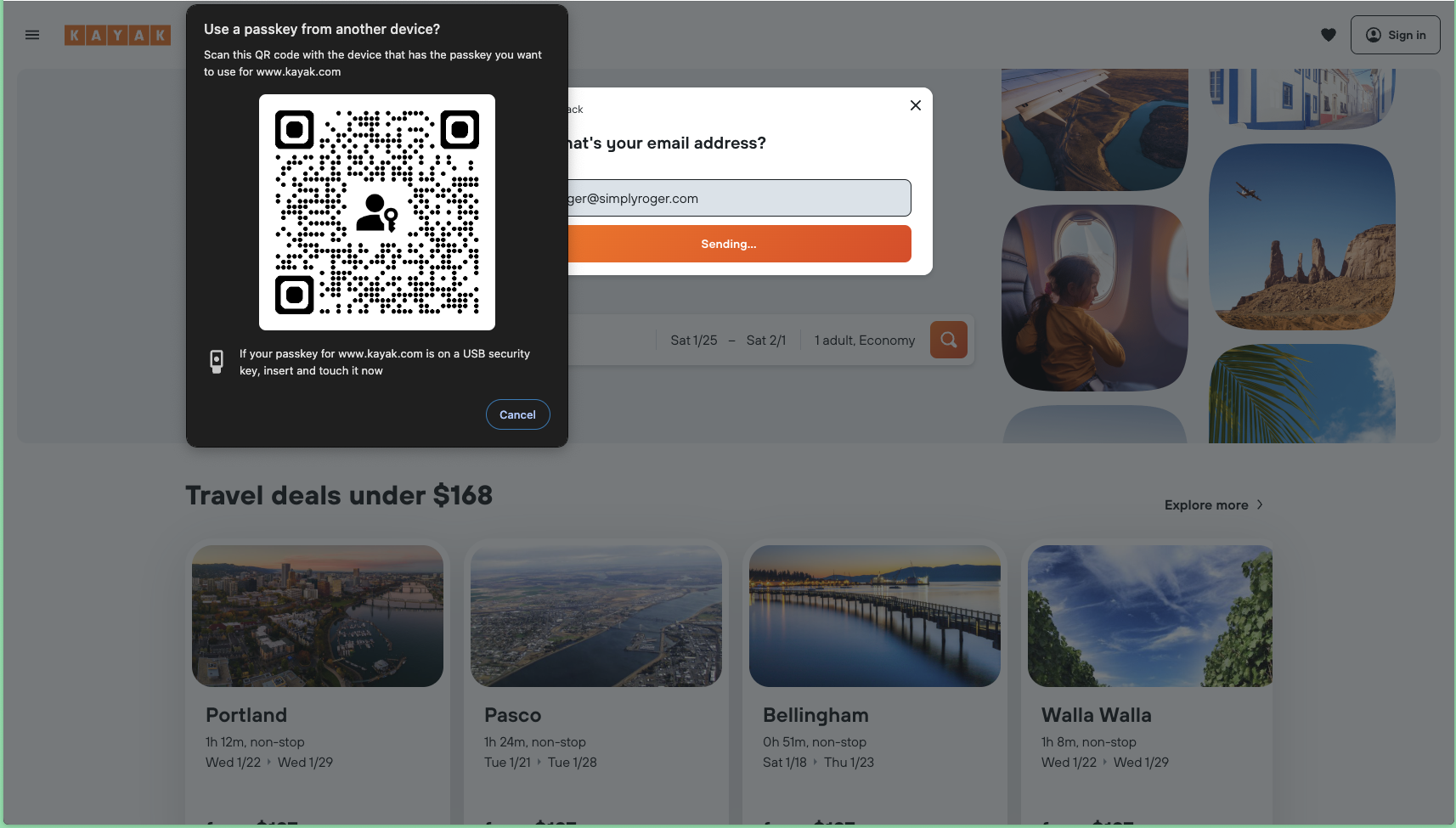
The scanning and authenticating from a mobile device:
Are passkeys better than passwords?
The beauty of passkeys is that they’re both more secure and easier to use than passwords:
- No more forgetting: They are stored securely on your device (or in your password manager).
- Immune to password database leaks: Because the website only holds your public key (like the safety deposit box bank key), a hacker who breaches the website gets nothing they can use to log into your account.
- Unguessable: Unlike ‘Password123,’ a passkey is a complex mathematical string no human (or bot) can guess.
- Built-in phishing protection: Passkeys are mathematically tied to the specific website they were created for. Even if a scammer tricks you into visiting a fake website, your passkey simply will not work there.
Passkey Concerns?
Why does this matter? Think of an online account like a house with two doors: a modern, high-security smart lock (your new passkey) and an old-fashioned lock with a key under the doormat (your old password). Hackers don’t pick high-tech locks; they look for the spare key under the mat.
What to do if a site won’t let you disable passwords:
Unfortunately, not all services let you go “passkey-only” just yet. If a site forces you to keep a password as a fallback, ensure it is a long, randomly generated string stored in a password manager. That way, you get the daily convenience of logging in with your face or fingerprint, but your “back door” remains heavily fortified.
Passkey Loss: Understanding the Risks of Digital Lock-Out
If your device is the only place a passkey lives, losing it means losing access. You’ll be forced to go through tedious account recovery processes (like hunting down backup codes or waiting for email verifications) to regain access and create new passkeys from scratch.
The good news is that modern cloud services provide robust backup solutions:
- Apple users can secure their passkeys through iCloud Keychain
- Google Account holders can sync across their Android devices and Chrome
- Password managers like 1Password and Bitwarden offer encrypted passkey storage
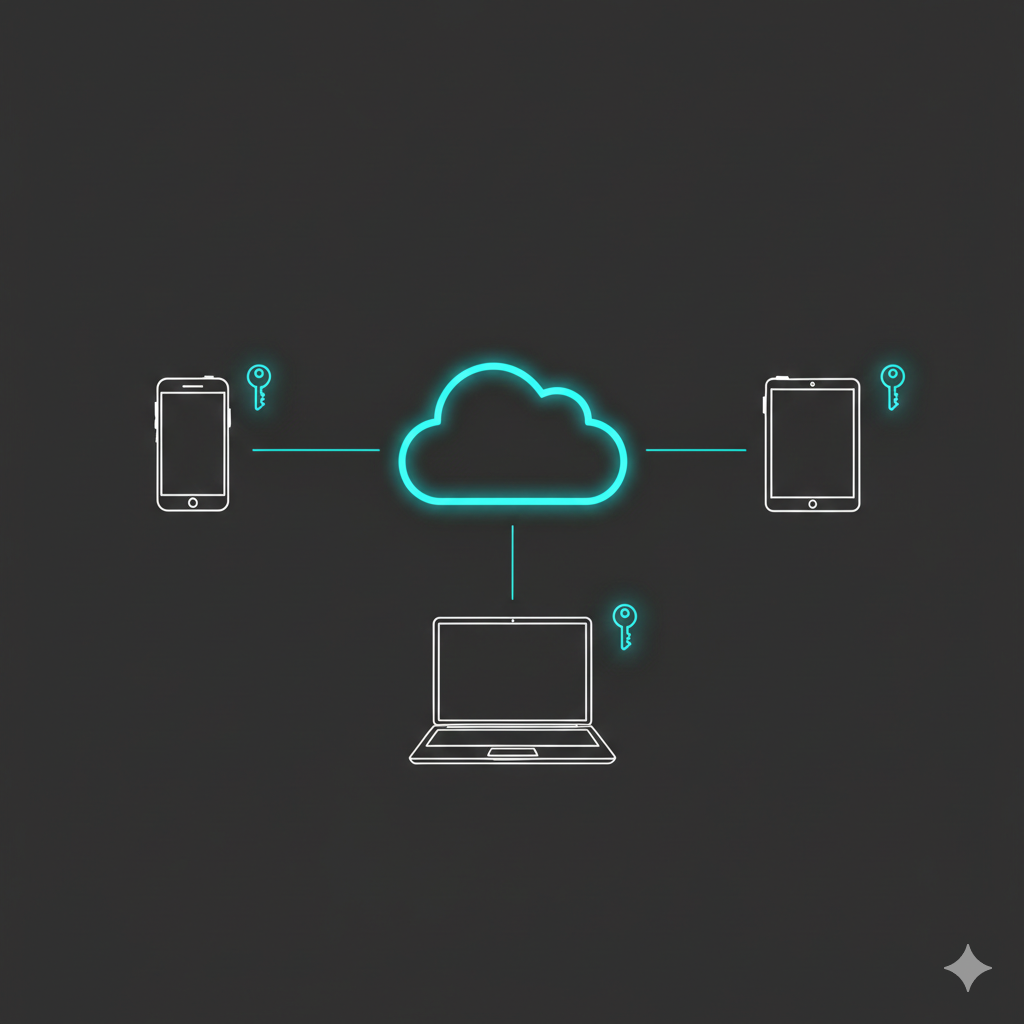
However, if you choose to store passkeys locally on a single device, you’re walking a tightrope without a safety net. If that device is lost or damaged, you’ll lose that specific passkey and be forced back into the traditional account recovery loop.
Best Practice: Always ensure passkeys are backed up to a trusted cloud service or password manager. Just as one wouldn’t keep the only copy of a house key in their pocket, don’t risk storing passkeys solely on one device.
The Verdict: Time to Make the Switch?
So, what did I tell my friend?
Passkeys aren’t just a “cool new tech feature”—they are a fundamental shift in how we stay safe online. By replacing the mental gymnastics of “monkey123!” with the same simple biometric scan we already use to unlock our phones, we’re removing the single biggest target for hackers: the password.
While the transition isn’t perfect—and you’ll still need to keep a close eye on those “legacy” passwords for a while—the security and convenience of a passkey-first world is well worth the effort.
How to Start Today
You don’t have to overhaul your entire digital life in one afternoon. I recommend a “Start with One” approach:
- Pick a Primary Account: Go to a major service you use daily—like Google, Amazon, or your password manager.
- Create a Passkey: Find the “Security” settings and look for “Passkeys” or “Fingerprint/FaceID login.”
- Experience the Magic: Log out, then log back in using only your face or fingerprint.
Once you experience a login that takes two seconds and requires zero typing, you’ll likely find yourself wishing every site supported passkeys. I know I do.
Are you a “how does it work under the hood” kind of person? Scroll down for a technical deep dive into the cryptography that makes this all possible.
Technical Appendix: The Math of Digital Signatures
A passkey relies on Public Key Cryptography. Instead of a shared secret (like a password that both you and the website need to know), a passkey is essentially a pair of cryptographic keys that work together.
Think of it as a digital lock and a unique key. The system uses two distinct components:
- The Public Key
Think of the public key as your digital address or a specialized padlock. It is completely safe to share with anyone. When you register with a website or service, the site stores this public key in its database. Even if a hacker steals it, it’s useless on its own—it can only verify a login, not create one.
- The Private Key
The private key is your ultimate proof of identity. It never leaves your device. It is securely locked away in your phone or computer’s secure hardware enclave, protected by biometric authentication (like Face ID) or your device PIN. This is the master half of the equation—the part that only you hold.
Understanding Digital Signatures
When you log in with a passkey, you are using your Private Key to create a Digital Signature.
A digital signature is like a tamper-evident, mathematically unbreakable wax seal on a digital message. It provides two crucial security properties:
- Authentication: Proves the message definitely came from your specific device.
- Integrity: Proves the message hasn’t been altered in transit.
How It Works: Your Phone vs. The Website
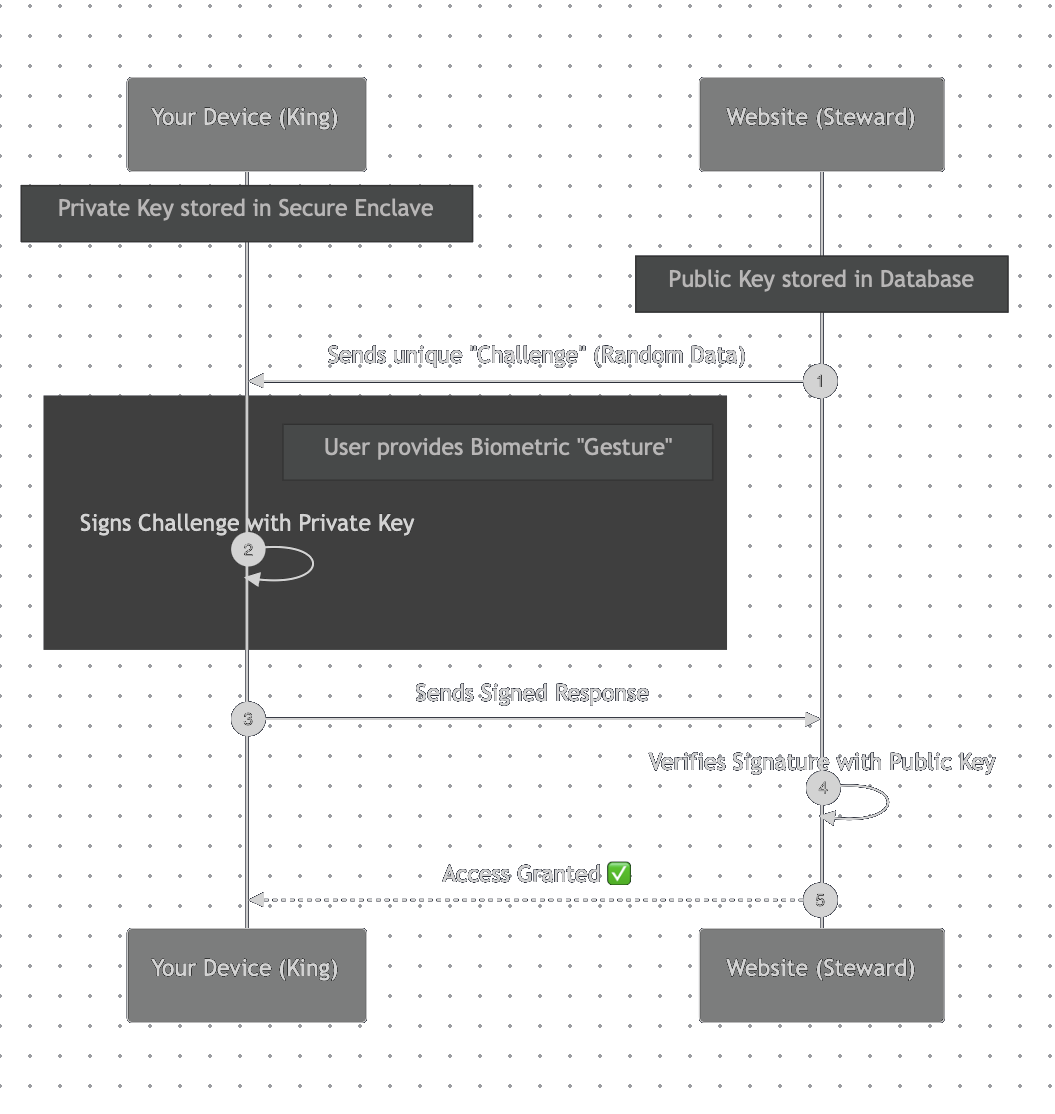
Let’s say your iPhone wants to log into Kayak. Here’s how they use digital signatures to let you in securely:
The Initial Setup
- During registration, your phone generates a brand-new key pair.
- Your phone securely hands the Public Key to Kayak.
- Your phone locks the Private Key away in its secure enclave.
The Login Request (Sending the Signed Message)
- When you click “Sign In,” Kayak sends your browser a unique, randomized “challenge” (essentially a mathematical puzzle).
- Your phone prompts you for Face ID. Once verified, your phone uses its hidden Private Key to digitally “sign” Kayak’s challenge.
- The signed response is sent back to Kayak.
The Verification
- Kayak receives the signed challenge and pulls up your Public Key from its database.
- Kayak checks the signature against the public key. Like a puzzle piece perfectly snapping into place, the math verifies that the signature could only have been created by your specific Private Key.
- You are logged in.
The Attack Scenario: Why Hackers Fail
Let’s see what happens when a malicious actor tries to break into your account.
Imagine a hacker breaches Kayak’s servers and steals their entire database. With traditional passwords, the hacker could run those passwords through cracking software and start logging into accounts.
With passkeys, the hacker only gets your Public Key.
- The hacker goes to Kayak.com and attempts a ‘credential stuffing’ attack.
- Kayak sends the hacker a cryptographic challenge.
- The hacker’s computer tries to send a response back, but they cannot sign it because they don’t have your phone’s Private Key.
- Even if the hacker tries to sign it with a fake private key, Kayak’s system will check the math against your true Public Key, realize it doesn’t match, and automatically reject the login.
No manual verification is needed. The math simply doesn’t allow the login to proceed.
Real-World Applications
This exact same principle of digital signatures has secured the backbone of the internet for years. It’s used in:
- Code signing for secure software updates (like iOS or Windows updates)
- Secure email (S/MIME, PGP)
- Legally binding document signing (like DocuSign)
- Blockchain and cryptocurrency transactions
And now, finally, we get to use that same military-grade cryptography to buy flights on Kayak without having to remember “monkey123!”.
References
FIDO Alliance. (2024, November 20). Passkeys. https://fidoalliance.org/passkeys/
Wikimedia Foundation. (2024, December 4). *Public-key cryptography. Wikipedia. https://en.wikipedia.org/wiki/Public-key_cryptography