
Ditching OpenVPN for AWS Client VPN
/ 8 min read
Updated:Table of Contents
I’m not sure how I missed the announcement from December 2018. In case you are like me and missed it too, AWS announced AWS Client VPN on December 18, 2018. Ever since I started using VPCs in the early 2010s, I’ve wanted a baked-in VPN solution for accessing resources in a VPC. OpenVPN running on an EC2 was and still is a solution, but it is a significant effort to get up and running and to maintain.
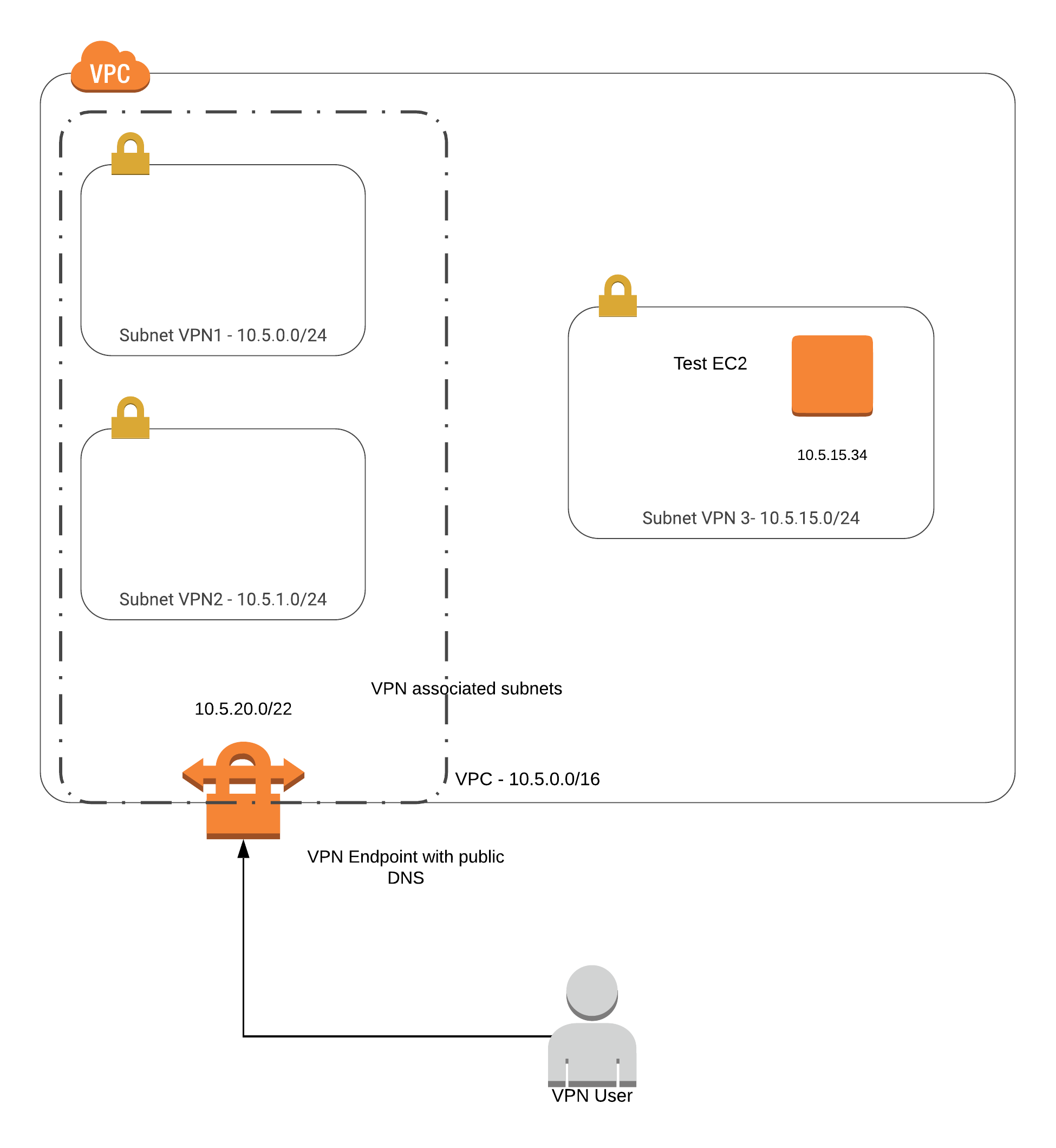
Here is my walk-through of testing the feature. As always, let’s start with a picture.
Assumptions
- AWS account already exists
- AWS CLI is locally installed
- AWS access keys are set up
- Ability to log into the AWS Console
VPC Setup
Create VPC
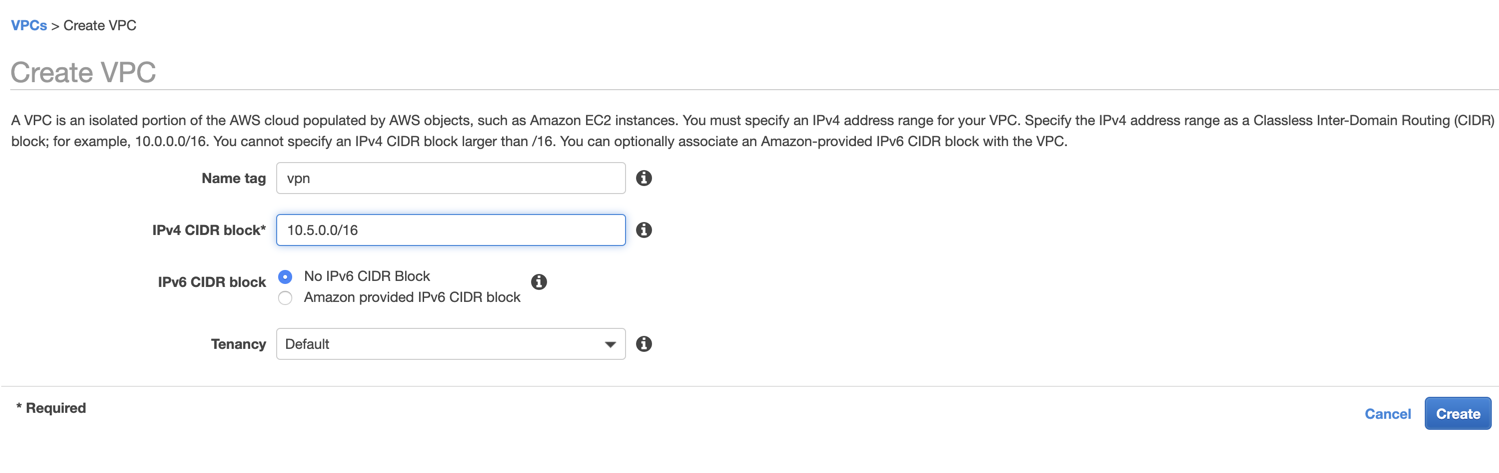
I start by logging into the AWS Console and clicking on the VPC service. I create a test VPC, calling it vpn. I set a CIDR of 10.5.0.0/16 which gives me 65,536 IPs to play with. If you are like me and don’t deal with CIDR too often, try CIDR to IPv4 Conversion. It is incredibly helpful.
Create Subnets
Next, I create three subnets in the vpn VPC. I do this by clicking on Subnets in the left navigation of the VPC Dashboard and then clicking the Create subnet button at the top.
- vpn1 with a CIDR of
10.5.0.0/24in us-west-2a - vpn2 with a CIDR of
10.5.1.0/24in us-west-2b - vpn3 with a CIDR of
10.5.15.0/24in us-west-2a
The two subnets vpn1 and vpn2 will be used for the VPN Client association, which I’ll get to in a bit. The subnet vpn3 will be used to host a private EC2 instance, which I will use to test access upon completing the VPN setup.
Create EC2
I add an EC2 instance to my VPC by going back to the AWS Console and clicking on the EC2 service. Once in the service, I click on Launch Instance. It does not matter what AMI base image I use for this testing. So, I pick the default Amazon Linux 2 AMI (HVM), SSD Volume Type and click Select.
For the instance type, I choose the smallest, a t2.nano, and click on Next: Configure Instance Details. Here I keep the defaults except for the following:
- Network: I set to the newly created vpn VPC
- Subnet: I set to vpn3
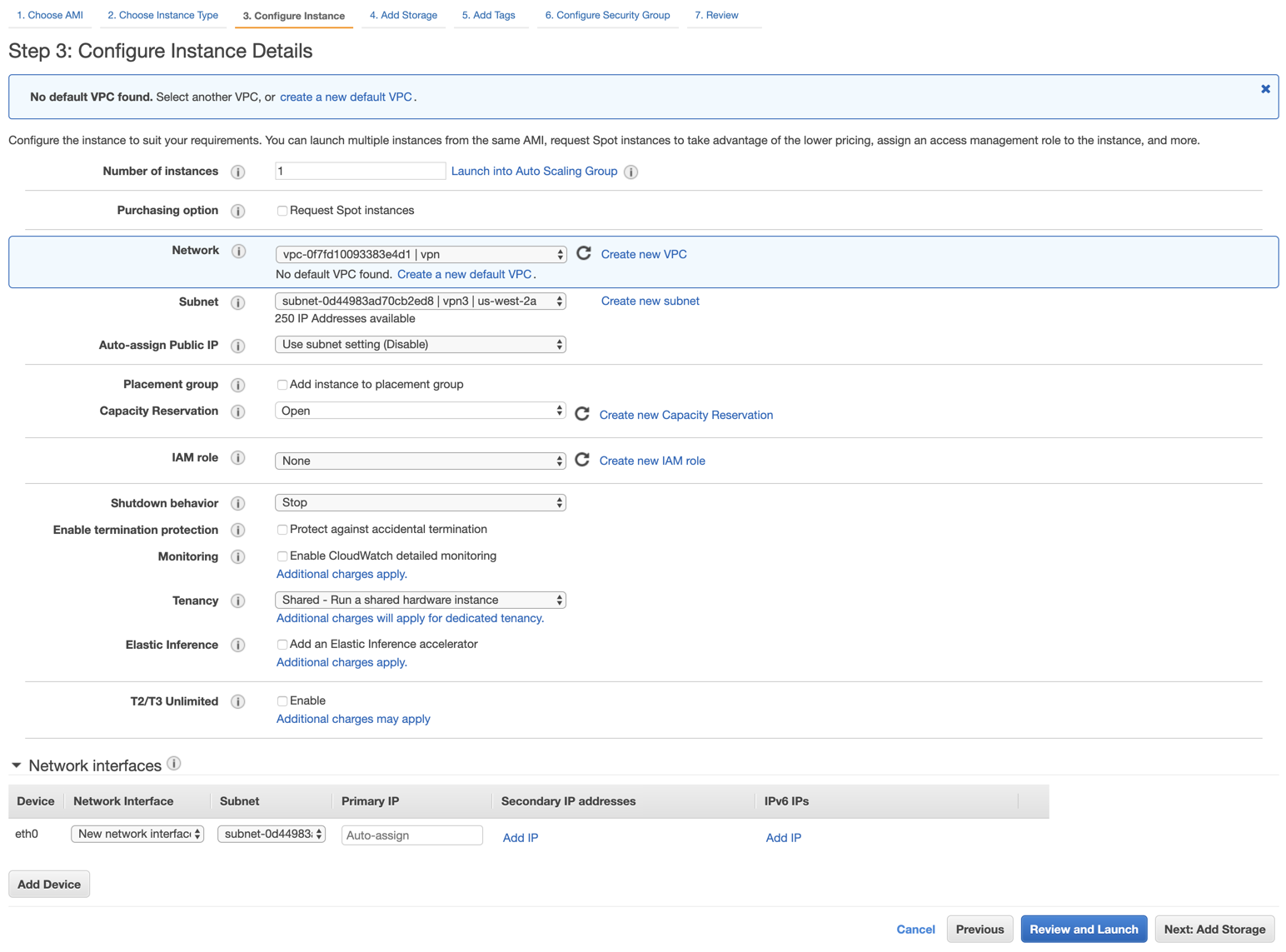
At this point, I click on Review and Launch, skipping the storage and tag customizations.
Client VPN Setup
I let the EC2 spin up and move on to creating the client VPN. I am using the AWS documentation as my guide to complete this walk-through.
Mutual Authentication and Generating Keys
It looks like the AWS VPN Client allows for two types of authentication: Active Directory and Mutual Authentication. Since I don’t have an Active Directory in my environment, I go with Mutual Authentication, which requires creating public and private keys to authenticate.
To make this process simple, AWS provides a how-to to configure the keys. AWS recommends grabbing the easy-rsa GitHub repo to generate the necessary certificates.
I launch a terminal and type the following commands:
git clone [https://github.com/OpenVPN/easy-rsa.git](https://github.com/OpenVPN/easy-rsa.git)cd easy-rsa/easyrsa3./easyrsa init-pki./easyrsa build-ca nopass./easyrsa build-server-full simplyroger nopass./easyrsa build-client-full roger.simplyroger.com nopass
mkdir ../../custom_foldercp pki/ca.crt ../../custom_foldercp pki/issued/simplyroger.crt ../../custom_foldercp pki/private/simplyroger.key ../../custom_foldercp pki/issued/roger.simplyroger.com.crt ../../custom_foldercp pki/private/roger.simplyroger.com.key ../../custom_foldercd ../../custom_folder
aws acm import-certificate --certificate file://simplyroger.crt --private-key file://simplyroger.key --certificate-chain file://ca.crt --region us-west-2 --profile=simplyrogeraws acm import-certificate --certificate file://roger.simplyroger.com.crt --private-key file://roger.simplyroger.com.key --certificate-chain file://ca.crt --region us-west-2 --profile=simplyroger
Note: If you wish to run this, swap out simplyroger and roger.simplyroger.com with your own server and client information. Also, the
aws acmcommands assume the AWS CLI is installed and credentials are configured in —profile=simplyroger. Change this to your profile (or remove the —profile flag entirely to use your default profile).
After running the aws acm commands, I get back a JSON response containing the Certificate ARN. I note these ARNs down since I’ll need them later.
{ "CertificateArn": "arn:aws:acm:us-west-2:764380047232:certificate/3478a663-8927-4b93-9e11-908c7185689f"}At this point, I have the following files in my custom_folder/ directory:
ca.crtroger.simplyroger.com.crtroger.simplyroger.com.keysimplyroger.crtsimplyroger.key
Create Client VPN Endpoint
Leaving the terminal, I now go back to the AWS Console to create the client VPN endpoint by choosing Client VPN Endpoints in the left navigation under the VPC Dashboard. I then select Create Client VPN Endpoint.
My settings are as follows:
- Name Tag:
roger - Description:
roger@simplyroger.com - Client IPv4 CIDR:
10.5.20.0/22- Note: It is important to choose an address space that does not overlap with any existing subnets.
10.5.20.0-10.5.23.255is not within any of the subnets I set up, so this is perfect. - The smallest address space AWS lets you choose is a
/22. I’m not sure why they need at least 1,024 hosts, but it is a hard requirement.
- Note: It is important to choose an address space that does not overlap with any existing subnets.
- Server certificate ARN:
arn:aws:acm:us-west-2:764380047232:certificate/3478a663-8927-4b93-9e11-908c7185689f - Client certificate ARN:
arn:aws:acm:us-west-2:764380047232:certificate/a87485d8-6282-4bc9-a6e3-2a8097bed406 - Do you want to log the details on client connections?:
Yes - CloudWatch Logs log group name:
simplyroger-vpn - CloudWatch Logs log stream name:
roger - Enable split-tunnel: Checked (This allows regular internet traffic to bypass the VPN).
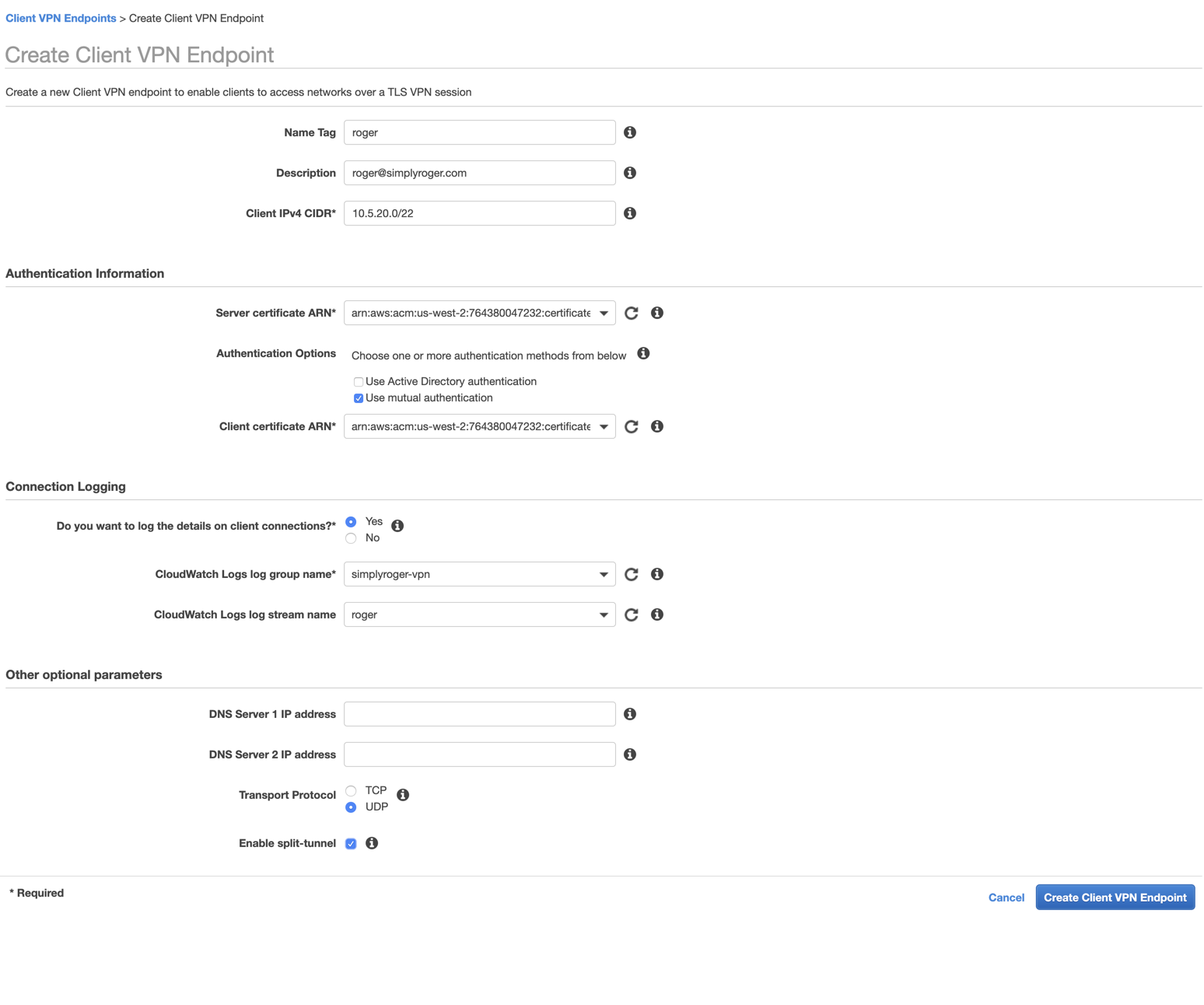
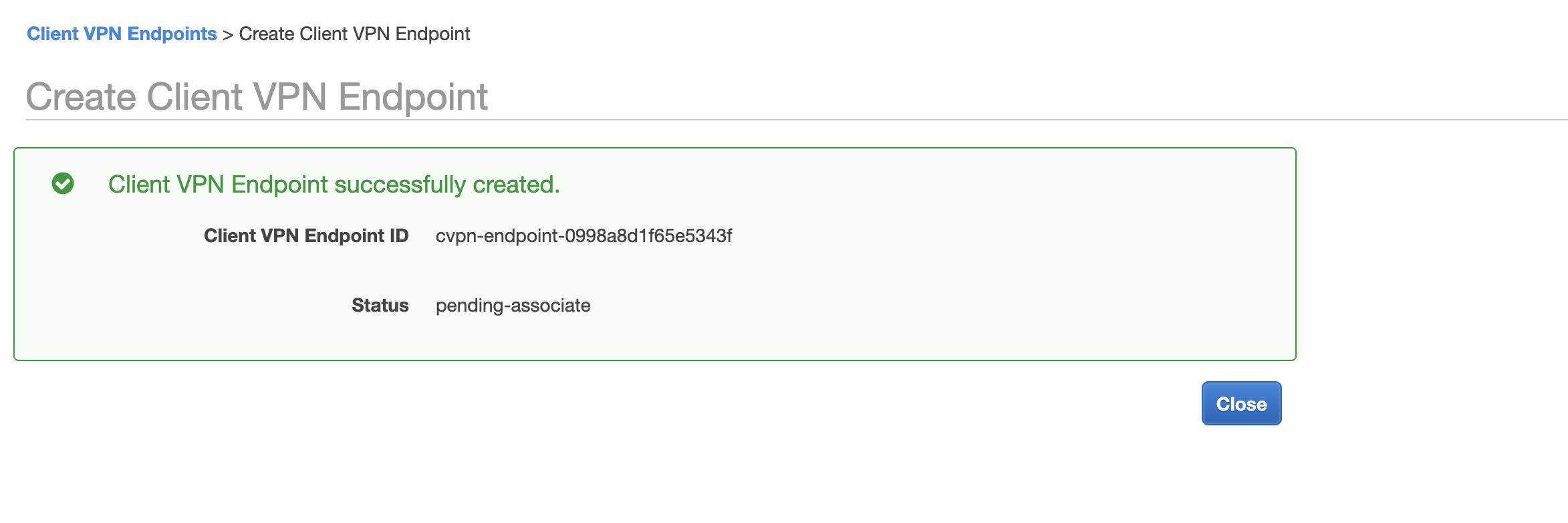
After successfully creating the endpoint, I get a pending-associate status.
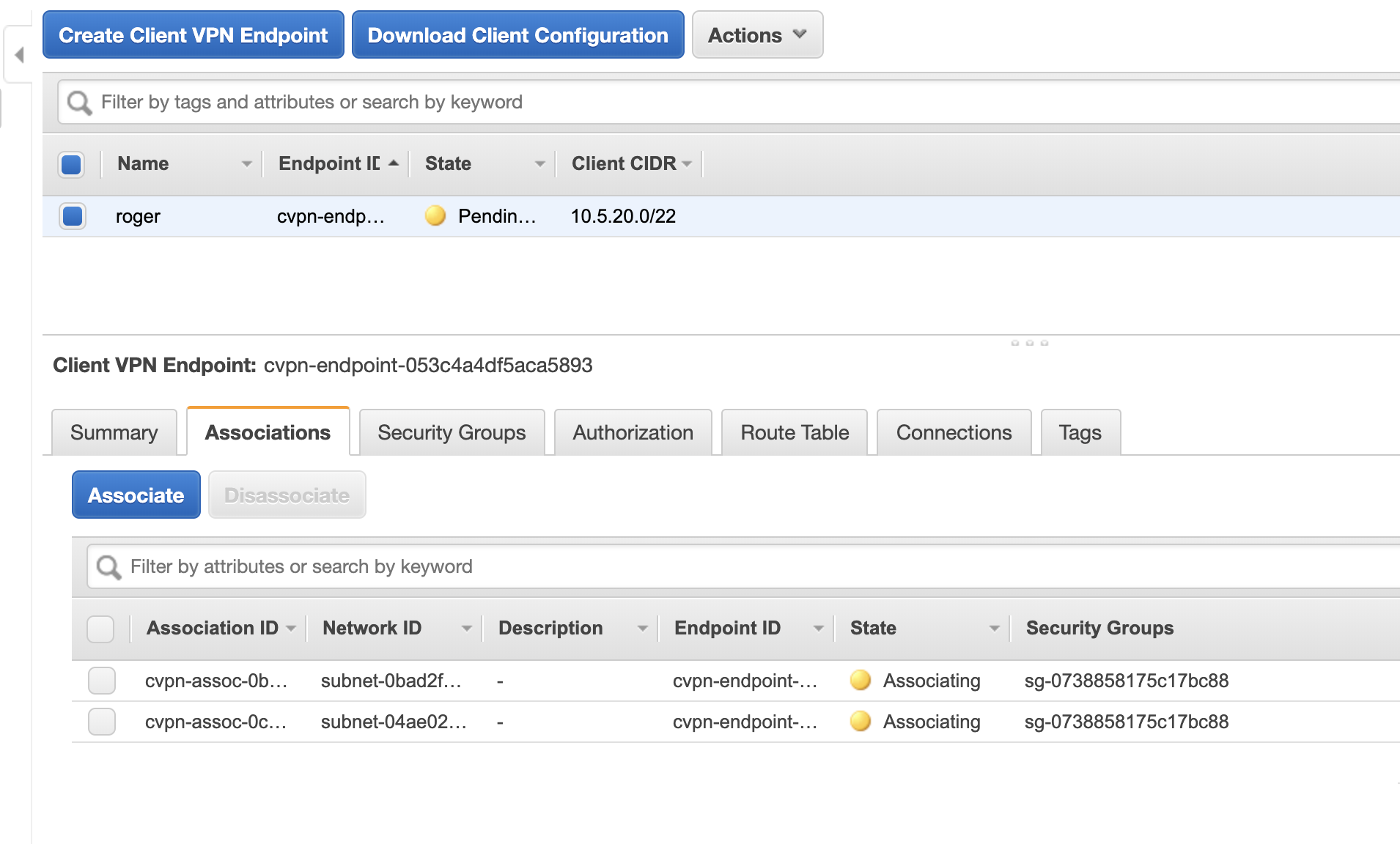
To fix this, I click on the Associations tab inside the Client VPN Endpoints screen. I then click on Associate to bring up the Create Client VPN Association to Target Network screen. I choose the vpn VPC and the vpn1 subnet.
- VPC:
vpc-0f7fd10093383e4d1 - Choose a subnet to associate:
subnet-04ae020276cf462c2
I repeat the above process to associate the vpn2 subnet, which is in a different Availability Zone. Doing this handles possible failure if one AZ goes down. Once I add both, I see their status change to associating.
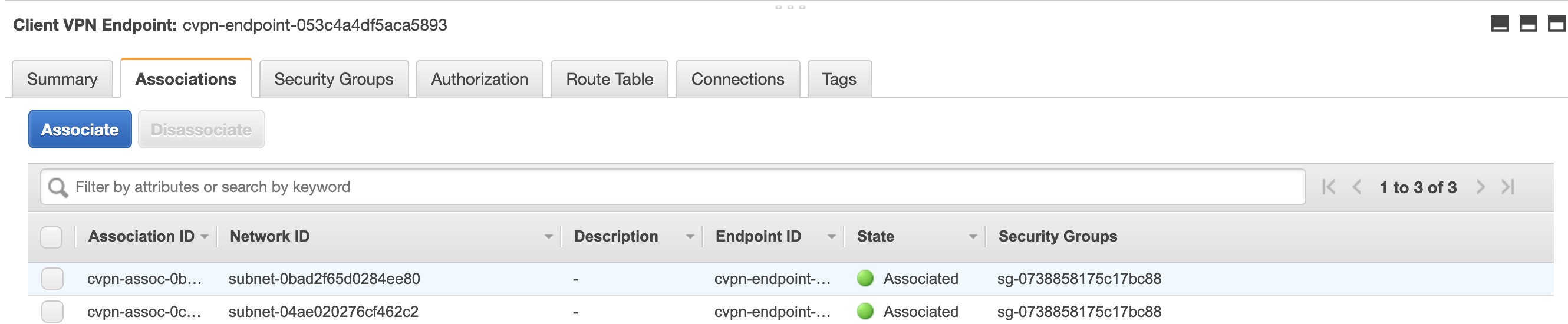
It may take a few minutes, but once the endpoint is successfully associated, the yellow “associating” state should turn green and say Associated.
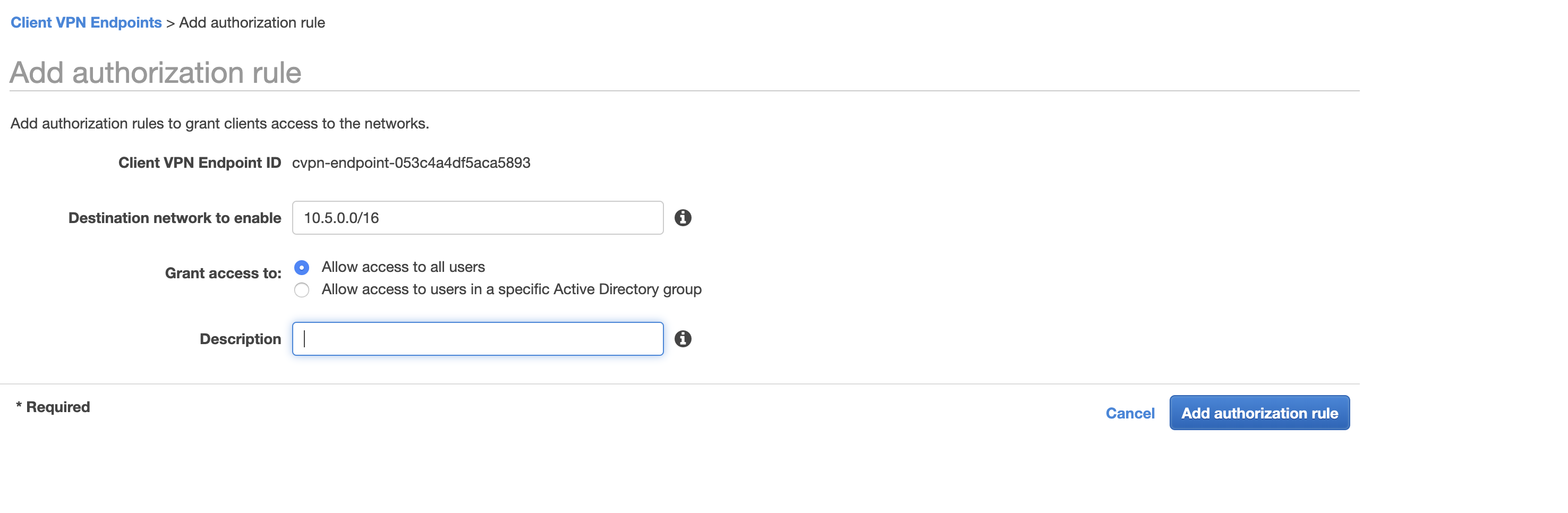
Now, I need to add authorization to the endpoint. I click on the Authorization tab and choose Authorize Ingress. For my testing purposes, I set access to the entire VPC as follows:
- Destination network to enable:
10.5.0.0/16 - Grant access to:
Allow access to all users
Setting up the .ovpn Configuration File
The last step is to download the client configuration file. At the top of the Client VPN Endpoints screen, I click Download Client Configuration. This drops a downloaded-client-config.ovpn file into my ~/Downloads folder.
I copy the file to the custom_folder I created earlier:
cp ~/Downloads/downloaded-client-config.ovpn ~/stuff/custom_folder/According to Amazon’s instructions, I need to make two manual changes to the .ovpn file before loading it into my OpenVPN client:
- Add a random string to the front of the DNS name: I change
remote cvpn-endpoint-053c4a4df5aca5893.prod.clientvpn.us-west-2.amazonaws.com 443toremote randomstring.cvpn-endpoint-053c4a4df5aca5893.prod.clientvpn.us-west-2.amazonaws.com 443. (This prevents DNS caching issues). - Add references to the certificate and keys files: I append the following two lines to the very end of the
.ovpnfile:
cert /Users/roger/stuff/custom_folder/roger.simplyroger.com.crtkey /Users/roger/stuff/custom_folder/roger.simplyroger.com.keyThat’s it. I import the file to my OpenVPN client. I use Viscosity, but there are many other excellent choices out there.
Connecting to the VPN
The moment of truth is here. I go into Viscosity and click to connect to the VPN. It works!
I am connected with a satisfying green status light. But can I see the EC2 instance that I created earlier? I check the private IP of the EC2, which is 10.5.15.34. This private IP is strictly accessible only from within the VPC network. If my tunnel isn’t working, I won’t be able to connect.
I set up two test cases:
- Ping the EC2 IP
- SSH into the EC2
ping 10.5.15.34PING 10.5.15.34 (10.5.15.34): 56 data bytes64 bytes from 10.5.15.34: icmp_seq=0 ttl=254 time=106.015 ms64 bytes from 10.5.15.34: icmp_seq=1 ttl=254 time=180.781 ms64 bytes from 10.5.15.34: icmp_seq=2 ttl=254 time=162.107 ms64 bytes from 10.5.15.34: icmp_seq=3 ttl=254 time=206.175 ms^C--- 10.5.15.34 ping statistics ---4 packets transmitted, 4 packets received, 0.0% packet lossround-trip min/avg/max/stddev = 106.015/163.769/206.175/36.831 ms
roger@Mac-Mini-Pro custom_folder % ssh -i ~/.ssh/simplyroger.pem ec2-user@10.5.15.34The authenticity of host '10.5.15.34 (10.5.15.34)' can't be established.ECDSA key fingerprint is SHA256:BWnHau46zdfHpZZjJ2ZyG/KlDd9DiTcr/vZhN3Grr34.Are you sure you want to continue connecting (yes/no)? yesWarning: Permanently added '10.5.15.34' (ECDSA) to the list of known hosts.
       __|  __|_  )       _|  (     /   Amazon Linux 2 AMI      ___|\___|___|
[https://aws.amazon.com/amazon-linux-2/](https://aws.amazon.com/amazon-linux-2/)
Both tests pass successfully. I get a response back from the EC2 instance via its private IP and can SSH directly into the machine.
Conclusion
There are a few extra steps to configure a client VPN connection with mutual authentication compared to Active Directory. If I had many users or were already heavily invested in AD, I’d likely implement that authentication method instead. However, for a single user or a small team, taking a few minutes to generate the keys is far less effort than spinning up and maintaining an entire Active Directory instance.
Overall, I’m highly pleased with the setup and incredibly happy to not need an OpenVPN server anymore.
Thanks, AWS, and thank you for reading.